Choose the right image editing tool
Compress, convert, resize or crop JPEG, PNG and WebP images. Upload here to begin with single-image WebP compression, then adjust settings in the existing editor.
Choose or drop JPEG, PNG or WebP images here.
Up to 30 MB per image. Decoded image limits also apply.
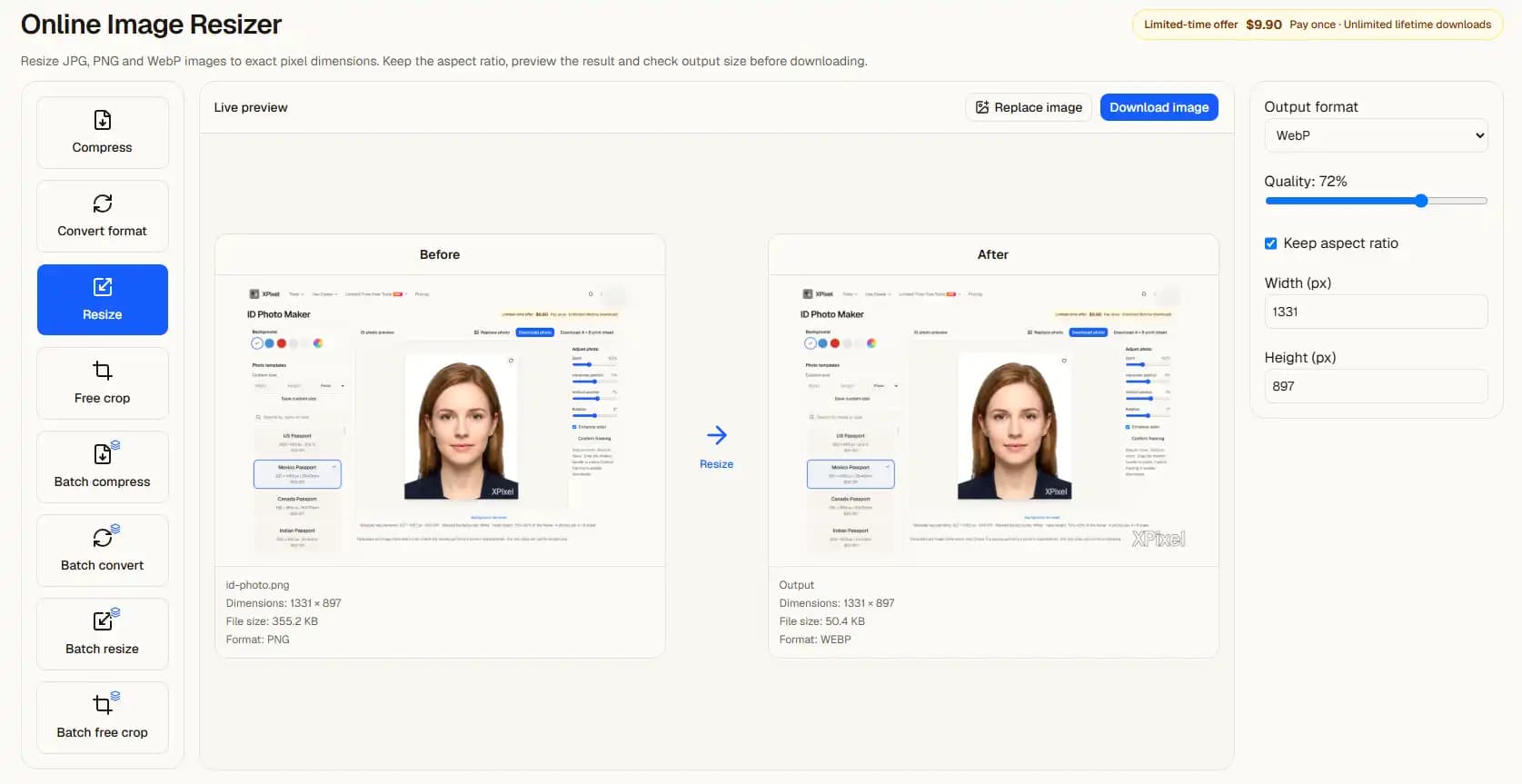
Compression, conversion or resizing?
Compression changes encoding settings; conversion changes the file format; resizing changes pixel dimensions; cropping removes parts of the frame. Choose the action that matches the receiving site’s requirement.
Keep the original when editing. A PNG export does not recover detail or transparency missing from a JPEG, and a smaller file is not guaranteed for every source.
From upload to result
- 1Choose a clear source image on this page.
- 2Continue automatically in the editor with the settings shown above.
- 3Inspect the preview, adjust if needed, then choose a download option.
Previews contain a watermark. Clean exports follow the access and purchase requirements shown in the editor.
Before you start
Will I need to upload again?
No. In the same tab, the selected file is handed to the editor and processed there. Refreshing during the handoff can lose the file; select it again if prompted.
Does a preview guarantee acceptance?
No. Review the output yourself. ID photo authorities and upload sites can impose additional requirements.
Related tasks
Choose or drop JPEG, PNG or WebP images here.
Up to 30 MB per image. Decoded image limits also apply.